
Stop Surprise Amazon Subscribe & Save Charges, FTC Backed Checklist

Run a printable Amazon Subscribe & Save audit to stop surprise charges. Includes a cancellation checklist, dispute steps, and habit prompts to keep...
Stop Surprise Amazon Subscribe & Save Charges, FTC Backed Checklist
An Amazon Subscribe and Save audit finds every active recurring shipment and stops upcoming charges by acting before each subscription's "last day to update this order." The first move is simple: open Your Subscribe & Save Items right now and check that date on every item. Changes made after it will not stop the next charge, since Amazon submits payment once an order enters shipping.
TL;DR:
- Regularly review your Subscribe and Save list during each quarterly audit to catch upcoming shipments and avoid charges on unneeded items.
- Check the last day to update each order, as changes made after this date will not stop the upcoming shipment or charge.
- Monitor all linked payment methods for your subscriptions, since Amazon can switch charges to backup cards without notice or approval.
- Use a household or shared account system to prevent duplicate subscriptions and keep track of all active items across profiles.
- Cancel or modify subscriptions promptly before the last update window to prevent unwanted shipments and charges, and keep records of cancellation confirmations.
Table of Contents
- Step-by-step audit checklist: what to find and record for every item
- How to cancel, skip, or change a subscription in Amazon
- Verify cancellations and handle charges that show up anyway
- Prevent subscription creep with small systems, not willpower
- Spotting duplicate or unnecessary Subscribe and Save items
- Managing Subscribe and Save across multiple users or a shared household account
- Subscribe and Save savings and who qualifies for the discount
- Tracking coupons and promotions alongside your subscriptions
- Why a system beats one-off cancellations
- How our workbook turns this audit into a habit, not a chore
- FAQ
- Sources
- Official pages to check for account steps and consumer rights
Step-by-step audit checklist: what to find and record for every item
Start in your Amazon account under Accounts & Lists, then Memberships & Subscriptions, then Subscribe & Save items. This page lists every active subscription in one place, and the Subscriptions tab lets you sort by next delivery date so you catch anything shipping soon.
For each item, record these fields:
- Product name and quantity per shipment.
- Delivery frequency (every one, two, or three months, for example).
- Next delivery date and the last day to update this order.
- Payment method currently assigned to that subscription.
- Discount percentage applied, since Subscribe and Save savings vary by how many items ship in one delivery.
Each field has a reason. The delivery date and update deadline tell you how much time is left to act. The payment method matters because Amazon's Subscribe & Save terms allow a charge to route to a different card on file if the original one fails, which means a canceled card does not automatically stop the shipment. The discount field matters because canceling a subscription you barely use might cost you a small savings percentage you forgot you were getting on a staple item you'd keep anyway.
A simple table works better than a mental list when you have six or more subscriptions running at once:
| Product | Frequency | Next Delivery | Last Day to Update | Payment Method | |---|---|---|---|---| | Example: coffee pods | A few months apart | Date approaching | Shortly before shipment preparation | Visa | | Example: dish soap | Monthly | Date approaching | Shortly before shipment preparation | Visa | | Example: vitamins | Every 3 months | April | April 15 | Mastercard |
Copy this layout into a spreadsheet or a printed page and fill it in with your actual items.
Pro Tip: Check every card and payment method listed on your Amazon account, not just the one you think is attached, because Amazon can switch to a backup card without asking first.
How to cancel, skip, or change a subscription in Amazon
Once your audit sheet is filled in, work through each row and decide what to do. The clicks themselves are consistent:
- Open Your Subscribe & Save Items and select the subscription you want to change.
- Click Edit or the product image to open subscription details.
- Choose Cancel subscription, or select Change your schedule or quantity to adjust timing or amount instead.
- Confirm the change and note the confirmation screen or email.
Use a simple decision rule for each item. If you no longer want the product, cancel it outright. If you still want it but the timing is off, skip the next shipment instead of canceling the whole subscription. If it's a staple you use steadily but order too often, lengthen the interval or reduce the quantity rather than canceling, which keeps your Subscribe and Save discount active on an item you'll reorder anyway.
Timing drives everything here. The last day to update this order is the cutoff before Amazon prepares the shipment and charges your card. Miss it, and the item ships regardless of what you decide the next morning. Reporting on the cancellation process confirms charges are submitted at the point of shipment, which is why skipping or canceling a day late accomplishes nothing for that cycle.
If the cancel option seems missing or grayed out, don't assume it's broken and move on. Screenshot the page, note the time, and contact Amazon customer service through chat or phone to request cancellation directly, keeping the transcript or call details as your record.
Pro Tip: Skip a shipment when you're unsure, since skipping costs nothing and buys you another cycle to decide, while canceling by mistake means re-enrolling and possibly losing your current discount tier.
Verify cancellations and handle charges that show up anyway
A cancellation click is not proof a cancellation happened. Save a screenshot of the confirmation screen, keep the confirmation email, and if you used chat or phone support, copy the transcript or note the agent's name, the date, and the time of the call. This record is what you'll need if a charge appears later.
After canceling, watch every payment method tied to your Amazon account, not just the card you expected to be charged, for at least one full billing cycle. The FTC advises monitoring bank and credit card statements closely after any cancellation and keeping evidence in case a dispute becomes necessary.
If a charge shows up after you've canceled, start with your card issuer's dispute or chargeback process and attach your cancellation proof. If that doesn't resolve it, escalate to the FTC and your state attorney general's office.

A note worth remembering: Amazon's own terms state a subscription charge can route to another payment method on the account if the original one is unavailable, which is one reason a charge can appear on a card you didn't expect even after you believed everything was canceled.
The FTC's Negative Option Rule requires sellers running recurring subscriptions to provide simple cancellation mechanisms, which backs up your right to dispute a charge after a cancellation attempt that should have worked.
Prevent subscription creep with small systems, not willpower
A one-time cleanup fades unless you build a routine around it. Set a recurring quarterly calendar reminder tied to your soonest next-delivery dates, and rerun the same checklist from section two each time. It takes a few minutes once the habit is set.
A few account-level changes reduce the chance of surprise charges:
- Remove unused or expired cards from your Amazon wallet so there's no backup method to fall back on.
- Keep one card you check often linked to active subscriptions.
- Before adding any new subscription, confirm how to cancel it and how long any trial period runs.
- Give yourself a 24 to 48 hour cool-off period before subscribing to anything new.
Building this into a habit, rather than treating it as a one-off fix, is the same principle behind daily challenge-based approaches like the one in our zero-spend reset blueprint, which uses printable templates and short daily prompts to make audits automatic instead of a chore you keep postponing.
Pro Tip: Keep a short script ready for cancellation calls, something as simple as "I'd like to cancel this subscription effective immediately," since clarity shortens the call and reduces the chance of being upsold instead of canceled.
Spotting duplicate or unnecessary Subscribe and Save items
Duplicate subscriptions creep in more easily than people expect. A common pattern: you subscribe to a product, forget you did, then subscribe again months later when the item shows up as a suggestion during checkout. Scan your audit sheet for repeated product names or near-identical items, like two different vitamin brands doing the same job.
Unnecessary subscriptions are a separate problem. These are items you no longer use but never canceled, often because the delivery frequency is long enough that you forget about them between shipments. Cross-reference your list against what's actually in your pantry or bathroom cabinet. If you have three unopened bottles of the same supplement, that subscription is running ahead of your actual use.
A practical fix is matching frequency to real consumption. If a product lasts you ten weeks but ships every eight, you're accumulating surplus and paying for it. Stretching the interval or reducing the quantity per shipment solves this without canceling a discount you'd otherwise lose. Run this comparison during the same quarterly audit mentioned above rather than as a separate task, since the data is already in front of you.
Managing Subscribe and Save across multiple users or a shared household account
Shared Amazon accounts and household groups complicate audits because more than one person can add a subscription without the others knowing. If your household uses Amazon Household or a shared login, start by confirming who has ordering permissions and whether each person's subscriptions show up in the same Subscribe & Save list or are split by profile.
Assign one person as the household's audit owner who runs the quarterly checklist for every subscription tied to the account, regardless of who added it. This avoids the common gap where two household members each assume the other is tracking things.
For households with separate Amazon profiles under one Amazon Household group, check each profile's own subscription page separately since they often don't consolidate into a single view. A shared note or spreadsheet, updated whenever someone adds or cancels something, closes the communication gap that lets duplicate subscriptions survive unnoticed for months.

Subscribe and Save savings and who qualifies for the discount
Subscribe and Save discounts apply per shipment and typically increase when multiple eligible items ship together on the same delivery date, though the exact percentage depends on the product and current promotion listed on the item page at the time you subscribe. Not every product on Amazon supports Subscribe and Save. Eligibility is set item by item, and the subscription option only appears on the product page when Amazon offers it for that specific listing.
The discount is tied to the subscription staying active and the shipment going out as scheduled. Skipping a delivery doesn't cancel your eligibility, but canceling the subscription entirely removes the discount until you resubscribe. This is part of why the audit distinguishes between items to cancel outright and items to simply adjust: a staple you buy regularly anyway is usually worth keeping on a lower frequency rather than dropping altogether and losing the discount structure.
Check the specific discount shown on each item's Subscribe & Save details, since it can change over time even for products you've subscribed to for months.
Tracking coupons and promotions alongside your subscriptions
Coupons and limited-time promotions on Amazon can stack with Subscribe and Save discounts on eligible items, but they need to be clipped or applied before the order processes, not after. Check the product page for a coupon clip button before your next scheduled delivery date, since a coupon applied too late won't retroactively apply to a shipment that's already gone out.
Build this into the same audit routine you're already running. When you review your next-delivery dates, spend a minute checking whether any of those products currently show an active coupon or limited-time promotion on the listing page. This is also a good moment to compare whether a one-time purchase with a coupon beats the Subscribe and Save price for that cycle, since promotional pricing sometimes undercuts the subscription discount temporarily.
Keep a note of any coupon codes or promotional terms in your audit sheet so you have a record if the discount doesn't apply correctly at checkout.
Why a system beats one-off cancellations
Canceling a handful of subscriptions once feels productive, but new ones creep back in within months without a repeatable system. The anxiety of discovering a surprise charge is worse than the charge itself, and it's avoidable with a routine you run on a schedule instead of a crisis response. Treat the checklist in this article as your baseline habit, not a one-time fix, and the savings compound quietly in the background.
, Omar
How our workbook turns this audit into a habit, not a chore
Running this audit once is useful. Running it automatically every quarter, without relying on remembering to do it, is what actually keeps money in your account. The 30-Day Zero-Spend Reset Challenge Workbook builds audits like this one into daily challenges, so checking subscriptions becomes a quick habit instead of a task you keep pushing to next month.
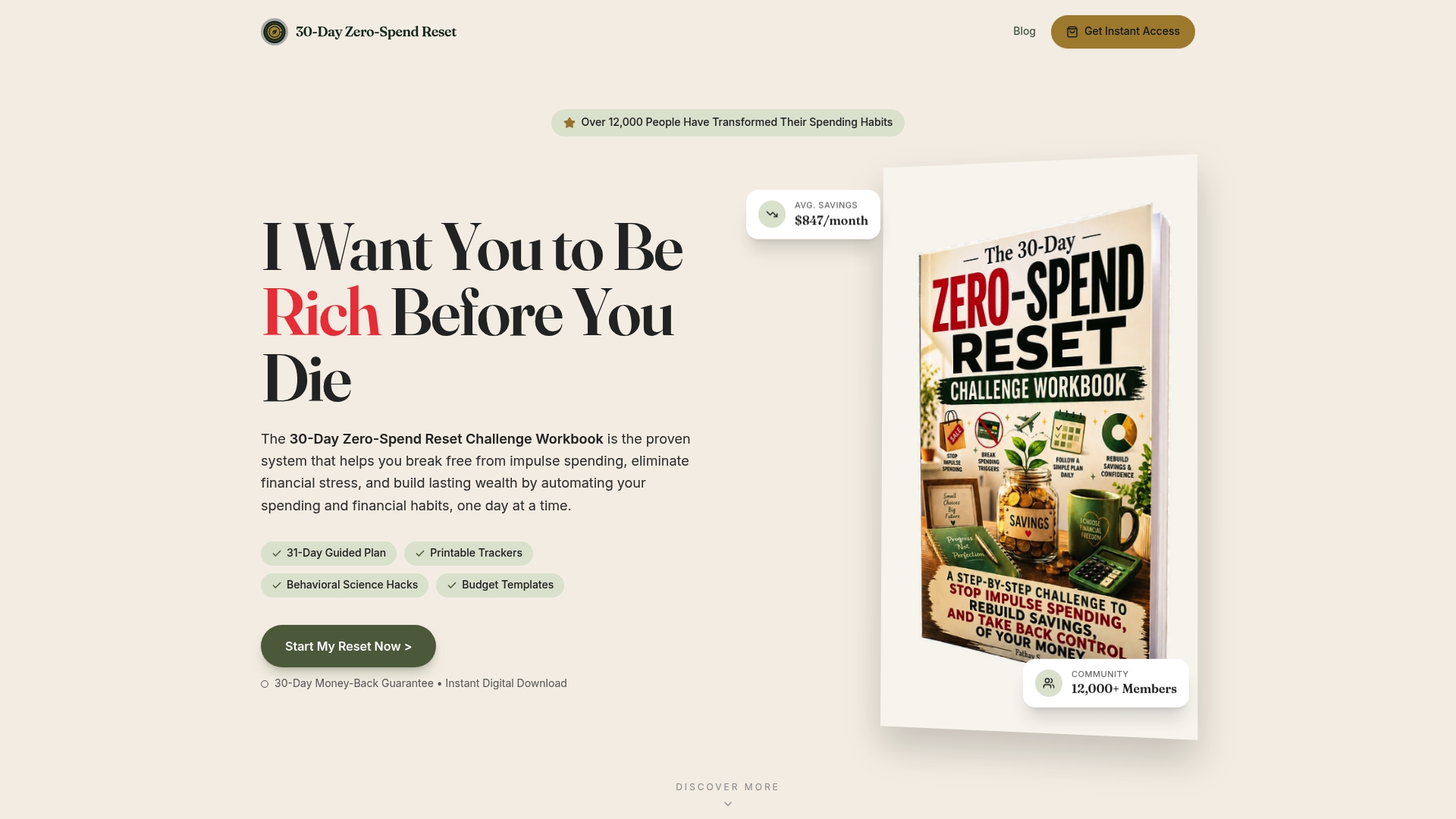
Inside, you'll find printable audit templates that mirror the checklist above, short social scripts for cancellation calls, and a companion webapp that sends reminders before your next-delivery dates arrive. If you want a faster path to reviewing your spending habits as a whole, our zero-spend guide is a good place to start before diving into the full workbook.
This article is general information, not a substitute for advice from a qualified financial advisor. Consult a qualified financial professional about your own circumstances before acting on anything here.
FAQ
What is the last day to update a Subscribe and Save order?
It's the final date Amazon lets you cancel, skip, or modify a subscription before that shipment is prepared and charged. Amazon's help pages confirm that once this date passes, the order proceeds to shipping and can't be stopped for that cycle.
Can Amazon charge a different card after I cancel a subscription?
Amazon's own Subscribe & Save terms state that a charge can route to another payment method on file if the original one can't complete the order. That's why a full audit checks every card linked to your account, not just the one you expect to be billed.
What should I do if I'm charged after canceling a subscription?
Start by disputing the charge with your card issuer and attach any cancellation proof you saved, such as a confirmation email or screenshot. If the dispute doesn't resolve things, the FTC recommends escalating to its consumer complaint system or your state attorney general.
How often should I audit my Subscribe and Save subscriptions?
A quarterly review tied to your upcoming delivery dates catches most unwanted charges before they ship. Pairing it with a habit-based routine, rather than a one-time cleanup, keeps duplicate or forgotten subscriptions from building back up.
Does skipping a Subscribe and Save shipment cancel my discount?
No, skipping a delivery doesn't affect your subscription's eligibility for the Subscribe and Save discount on future shipments. The discount is tied to keeping the subscription active, so skipping is a safer choice than canceling when you're unsure about a product.
Sources
- Cancel Your Subscribe & Save Subscription - Amazon Customer Service
- Federal Trade Commission, consumer guidance
- Federal Register, Negative Option Rule
- FTC takes action against Amazon for enrolling consumers in Amazon Prime without consent
- How to cancel Amazon Subscribe & Save and why you should - SlashGear
Official pages to check for account steps and consumer rights
- Cancel Your Subscribe & Save Subscription - Amazon Customer Service
- Change Your Subscribe & Save Delivery Schedule - Amazon Customer Service
- Subscribe & Save Terms & Conditions - Amazon Customer Service
- Federal Trade Commission, consumer guidance
- Federal Register, Negative Option Rule
- FTC takes action against Amazon for enrolling consumers in Amazon Prime without consent
- How to cancel Amazon Subscribe & Save and why you should - SlashGear
Recommended
Ready to reset your spending?
Get the 30-Day Zero-Spend Reset Workbook and turn these ideas into a daily action plan.
Start the 30-Day ResetThis article is part of the 30-Day Zero-Spend Reset method. Explore the complete day-by-day system behind these ideas.
Read the full guideKeep reading




Join the conversation
Be the first to share your thoughts on this article.